<?xml version="1.0" encoding="utf-8"?><feed xmlns="http://www.w3.org/2005/Atom" ><generator uri="https://jekyllrb.com/" version="3.10.0">Jekyll</generator><link href="https://bensonlabs.org/feed.xml" rel="self" type="application/atom+xml" /><link href="https://bensonlabs.org/" rel="alternate" type="text/html" /><updated>2026-05-25T15:08:49+00:00</updated><id>https://bensonlabs.org/feed.xml</id><title type="html">Benson Labs Blog</title><subtitle>Troubleshooting fixes and personal notes</subtitle><author><name>Justin Benson</name></author><entry><title type="html">macOS - Remove SafeMine profile</title><link href="https://bensonlabs.org/macos-remove-safemine-profile/" rel="alternate" type="text/html" title="macOS - Remove SafeMine profile" /><published>2021-05-11T00:00:00+00:00</published><updated>2021-05-11T00:00:00+00:00</updated><id>https://bensonlabs.org/macos-remove-safemine-profile</id><content type="html" xml:base="https://bensonlabs.org/macos-remove-safemine-profile/"><![CDATA[<p>SafeMine installs an admin profile that locks Chrome settings. Here’s how to remove it.</p>

<ol>
  <li><strong>Save these steps somewhere safe and close Chrome.</strong></li>
  <li>Click the <strong>Preferences</strong> (System Preferences) icon in your Mac’s menu bar and select <strong>Profiles</strong>.</li>
  <li>Select all <strong>AdminPrefs</strong> profile(s) and delete them by clicking the minus (−) icon at the bottom.</li>
  <li>Once you’ve removed the unwanted “adminprefs” profile(s), open the <strong>Terminal</strong> app (<code class="language-plaintext highlighter-rouge">Go &gt; Utilities &gt; Terminal</code> or press <code class="language-plaintext highlighter-rouge">⌘Space</code> and search Terminal).</li>
  <li>Enter the commands below, pressing Enter after each one:</li>
</ol>

<div class="language-bash highlighter-rouge"><div class="highlight"><pre class="highlight"><code>defaults write com.google.Chrome HomepageIsNewTabPage <span class="nt">-bool</span> <span class="nb">false
</span>defaults write com.google.Chrome NewTabPageLocation <span class="nt">-string</span> <span class="s2">"https://www.google.com/"</span>
defaults write com.google.Chrome HomepageLocation <span class="nt">-string</span> <span class="s2">"https://www.google.com/"</span>
defaults delete com.google.Chrome DefaultSearchProviderSearchURL
defaults delete com.google.Chrome DefaultSearchProviderNewTabURL
defaults delete com.google.Chrome DefaultSearchProviderName
</code></pre></div></div>

<ol>
  <li>Restart Chrome. The issue should be resolved. If not, restart your Mac.</li>
</ol>

<p><strong>Reference:</strong> <a href="https://support.google.com/chrome/thread/9350623?hl=en">https://support.google.com/chrome/thread/9350623</a></p>]]></content><author><name>Justin Benson</name></author><category term="macos" /><category term="malware" /><category term="security" /><summary type="html"><![CDATA[SafeMine installs an admin profile that locks Chrome settings. Here’s how to remove it.]]></summary></entry><entry><title type="html">PowerShell - Remove Dell SupportAssist</title><link href="https://bensonlabs.org/powershell-remove-dell-supportassist-msi/" rel="alternate" type="text/html" title="PowerShell - Remove Dell SupportAssist" /><published>2021-05-11T00:00:00+00:00</published><updated>2021-05-11T00:00:00+00:00</updated><id>https://bensonlabs.org/powershell-remove-dell-supportassist-msi</id><content type="html" xml:base="https://bensonlabs.org/powershell-remove-dell-supportassist-msi/"><![CDATA[<p>Two quick PowerShell commands to remove Dell SupportAssist — one for the MSI/traditional install, one for the Windows Store app.</p>

<div class="language-powershell highlighter-rouge"><div class="highlight"><pre class="highlight"><code><span class="c"># Remove Dell SupportAssist (MSI install)</span><span class="w">
</span><span class="n">Uninstall-Package</span><span class="w"> </span><span class="nt">-ProviderName</span><span class="w"> </span><span class="nx">msi</span><span class="w"> </span><span class="nt">-Name</span><span class="w"> </span><span class="s1">'Dell SupportAssist'</span><span class="w">

</span><span class="c"># Remove Dell SupportAssist (Windows Store app)</span><span class="w">
</span><span class="n">Get-AppxPackage</span><span class="w"> </span><span class="o">*</span><span class="nx">SupportAssist</span><span class="o">*</span><span class="w"> </span><span class="o">|</span><span class="w"> </span><span class="n">Remove-AppPackage</span><span class="w">
</span></code></pre></div></div>

<p>Run PowerShell as administrator before executing these commands.</p>]]></content><author><name>Justin Benson</name></author><category term="powershell" /><category term="windows" /><category term="dell" /><summary type="html"><![CDATA[Two quick PowerShell commands to remove Dell SupportAssist — one for the MSI/traditional install, one for the Windows Store app.]]></summary></entry><entry><title type="html">Re-Establish Domain Relationship trust using PowerShell</title><link href="https://bensonlabs.org/re-establish-domain-relationship-trust-using-powershell/" rel="alternate" type="text/html" title="Re-Establish Domain Relationship trust using PowerShell" /><published>2021-03-03T00:00:00+00:00</published><updated>2021-03-03T00:00:00+00:00</updated><id>https://bensonlabs.org/re-establish-domain-relationship-trust-using-powershell</id><content type="html" xml:base="https://bensonlabs.org/re-establish-domain-relationship-trust-using-powershell/"><![CDATA[<p>When a Windows 10 machine loses its trust relationship with the domain, you can re-establish it without rejoining the domain using PowerShell.</p>

<ol>
  <li>Log on to Windows 10 using the <strong>local Administrator</strong> account.</li>
  <li>Open a PowerShell terminal <strong>as admin</strong>.</li>
  <li>Run the following and press Enter:
    <div class="language-powershell highlighter-rouge"><div class="highlight"><pre class="highlight"><code><span class="nv">$credential</span><span class="w"> </span><span class="o">=</span><span class="w"> </span><span class="n">Get-Credential</span><span class="w">
</span></code></pre></div>    </div>
  </li>
  <li>Enter <strong>your domain account</strong> (which has admin rights) and password, then click OK.</li>
  <li>Run the following and press Enter:
    <div class="language-powershell highlighter-rouge"><div class="highlight"><pre class="highlight"><code><span class="n">Reset-ComputerMachinePassword</span><span class="w"> </span><span class="nt">-Credential</span><span class="w"> </span><span class="nv">$credential</span><span class="w">
</span></code></pre></div>    </div>
  </li>
  <li>Close PowerShell.</li>
  <li>Restart the machine.</li>
  <li>Log on to Windows 10 using your <strong>domain user account</strong>.</li>
</ol>]]></content><author><name>Justin Benson</name></author><category term="windows" /><category term="powershell" /><category term="active-directory" /><summary type="html"><![CDATA[When a Windows 10 machine loses its trust relationship with the domain, you can re-establish it without rejoining the domain using PowerShell.]]></summary></entry><entry><title type="html">Ubuntu 20 - black screen using xrdp from Windows 10</title><link href="https://bensonlabs.org/ubuntu-20-black-screen-using-xrdp-from-windows-10/" rel="alternate" type="text/html" title="Ubuntu 20 - black screen using xrdp from Windows 10" /><published>2020-06-08T00:00:00+00:00</published><updated>2020-06-08T00:00:00+00:00</updated><id>https://bensonlabs.org/ubuntu-20-black-screen-using-xrdp-from-windows-10</id><content type="html" xml:base="https://bensonlabs.org/ubuntu-20-black-screen-using-xrdp-from-windows-10/"><![CDATA[<p>I installed <strong>xrdp</strong> via <code class="language-plaintext highlighter-rouge">sudo apt install xrdp</code>, but when connecting from a domain-joined Windows 10 computer I got a black screen after authenticating through the <strong>xorg</strong> session login.</p>

<p>After much failed sleuthing, I think I figured it out:</p>

<ol>
  <li>Terminate any open RDP attempts into Ubuntu.</li>
  <li>Log out of your Ubuntu session.</li>
  <li>Run <code class="language-plaintext highlighter-rouge">mstsc.exe</code> from Windows back into Ubuntu — it should now be at the Ubuntu login screen and should connect successfully this time.</li>
</ol>

<p><em>Root cause: unknown/not fully understood.</em></p>]]></content><author><name>Justin Benson</name></author><category term="ubuntu" /><category term="linux" /><category term="rdp" /><category term="windows" /><summary type="html"><![CDATA[I installed xrdp via sudo apt install xrdp, but when connecting from a domain-joined Windows 10 computer I got a black screen after authenticating through the xorg session login.]]></summary></entry><entry><title type="html">Hyper-V - Ubuntu 20 LTS no network connections</title><link href="https://bensonlabs.org/hyper-v-ubuntu-20-lts-no-network-connections/" rel="alternate" type="text/html" title="Hyper-V - Ubuntu 20 LTS no network connections" /><published>2020-05-28T00:00:00+00:00</published><updated>2020-05-28T00:00:00+00:00</updated><id>https://bensonlabs.org/hyper-v-ubuntu-20-lts-no-network-connections</id><content type="html" xml:base="https://bensonlabs.org/hyper-v-ubuntu-20-lts-no-network-connections/"><![CDATA[<p><strong>Problem:</strong> Created a new Ubuntu 20 LTS VM in Hyper-V, but the installer found no network.</p>

<p><strong>Specs:</strong></p>
<ul>
  <li>Type: Generation 1</li>
  <li>8 GB RAM (dynamic)</li>
  <li>Default storage</li>
  <li>4 vCPUs</li>
  <li>Stock <a href="https://ubuntu.com/download/server">Ubuntu Server 20.04 LTS ISO</a></li>
</ul>

<p><strong>Observation:</strong></p>

<p>No matter what I tried — ensuring Default Network Adapter settings were set to External, or creating a Legacy Network adapter — nothing made a connection inside the VM.</p>

<p><strong>Solution:</strong></p>

<p>I re-rolled it.</p>

<ul>
  <li>Deleted the Gen 1 VM and created a <strong>Gen 2 VM</strong> instead.</li>
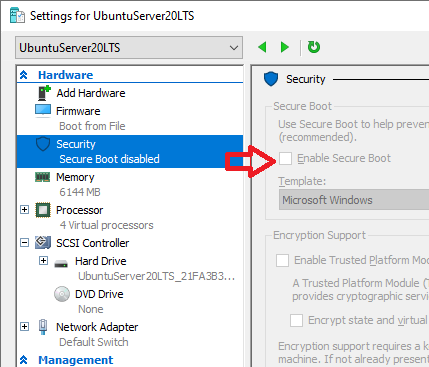
  <li>Had to <strong>turn off Secure Boot</strong> in Settings for it to boot at all. This is a test VM, so security was not a consideration — plan accordingly.</li>
</ul>

<p><img src="/media/posts/7/hyperV-2.png" alt="Hyper-V Generation 2 settings screenshot" /></p>

<p><strong>Extras:</strong></p>

<ul>
  <li>Enhanced session with linux-vm-tools: <a href="https://github.com/Microsoft/linux-vm-tools/wiki/Onboarding:-Ubuntu">https://github.com/Microsoft/linux-vm-tools/wiki/Onboarding:-Ubuntu</a></li>
</ul>]]></content><author><name>Justin Benson</name></author><category term="hyper-v" /><category term="ubuntu" /><category term="linux" /><category term="networking" /><summary type="html"><![CDATA[Problem: Created a new Ubuntu 20 LTS VM in Hyper-V, but the installer found no network.]]></summary></entry><entry><title type="html">LastPass - fix slow sync between phone and computer</title><link href="https://bensonlabs.org/lastpass-fix-slow-sync-bt-phone-and-computer/" rel="alternate" type="text/html" title="LastPass - fix slow sync between phone and computer" /><published>2020-05-28T00:00:00+00:00</published><updated>2020-05-28T00:00:00+00:00</updated><id>https://bensonlabs.org/lastpass-fix-slow-sync-bt-phone-and-computer</id><content type="html" xml:base="https://bensonlabs.org/lastpass-fix-slow-sync-bt-phone-and-computer/"><![CDATA[<p>LastPass is great, but when you need a password in a hurry and it’s not syncing between your phone and computer fast enough, here’s how to quickly force the sync.</p>

<p><strong>On a computer (browser extension):</strong></p>

<ol>
  <li>Click on the LastPass extension icon</li>
  <li>Account Options</li>
  <li>Advanced</li>
  <li>Click <strong>Refresh Sites</strong></li>
</ol>

<p><strong>On iPhone app:</strong></p>

<ol>
  <li>Settings</li>
  <li>Actions</li>
  <li><strong>Refresh Vault</strong></li>
</ol>

<hr />

<p><em>Tested with: LastPass from Chrome Web Store, iOS 13.4.1</em></p>]]></content><author><name>Justin Benson</name></author><category term="misc" /><category term="lastpass" /><summary type="html"><![CDATA[LastPass is great, but when you need a password in a hurry and it’s not syncing between your phone and computer fast enough, here’s how to quickly force the sync.]]></summary></entry><entry><title type="html">PowerShell - Log IP status</title><link href="https://bensonlabs.org/powershell-log-ip-status/" rel="alternate" type="text/html" title="PowerShell - Log IP status" /><published>2020-05-07T00:00:00+00:00</published><updated>2020-05-07T00:00:00+00:00</updated><id>https://bensonlabs.org/powershell-log-ip-status</id><content type="html" xml:base="https://bensonlabs.org/powershell-log-ip-status/"><![CDATA[<p>A simple PowerShell script to ping a list of IP addresses or hostnames and log whether each one is up or down, with a timestamp.</p>

<div class="language-powershell highlighter-rouge"><div class="highlight"><pre class="highlight"><code><span class="c"># Gets a list of computer names or IPs from a .txt file.</span><span class="w">
</span><span class="nv">$names</span><span class="w"> </span><span class="o">=</span><span class="w"> </span><span class="n">Get-Content</span><span class="w"> </span><span class="s1">'&lt;location of .txt file full of IP addresses&gt;'</span><span class="w">

</span><span class="c"># Sets the name and location of your output .CSV file.</span><span class="w">
</span><span class="nv">$IPstatus</span><span class="w"> </span><span class="o">=</span><span class="w"> </span><span class="s1">'&lt;location of .csv file&gt;'</span><span class="w">

</span><span class="nv">$date</span><span class="w"> </span><span class="o">=</span><span class="w"> </span><span class="n">Get-Date</span><span class="w">

</span><span class="c"># Pings each device in your list.</span><span class="w">
</span><span class="kr">foreach</span><span class="w"> </span><span class="p">(</span><span class="nv">$name</span><span class="w"> </span><span class="kr">in</span><span class="w"> </span><span class="nv">$names</span><span class="p">)</span><span class="w"> </span><span class="p">{</span><span class="w">
    </span><span class="kr">if</span><span class="w"> </span><span class="p">(</span><span class="n">Test-Connection</span><span class="w"> </span><span class="nt">-ComputerName</span><span class="w"> </span><span class="nv">$name</span><span class="w"> </span><span class="nt">-Count</span><span class="w"> </span><span class="nx">1</span><span class="w"> </span><span class="nt">-ErrorAction</span><span class="w"> </span><span class="nx">SilentlyContinue</span><span class="p">)</span><span class="w"> </span><span class="p">{</span><span class="w">
        </span><span class="c"># logs all UP IPs with timestamp</span><span class="w">
        </span><span class="n">Add-Content</span><span class="w"> </span><span class="nt">-Value</span><span class="w"> </span><span class="s2">"</span><span class="nv">$name</span><span class="s2">,up,</span><span class="nv">$date</span><span class="s2">"</span><span class="w"> </span><span class="nt">-Path</span><span class="w"> </span><span class="nv">$IPstatus</span><span class="w">
    </span><span class="p">}</span><span class="w">
    </span><span class="kr">else</span><span class="w"> </span><span class="p">{</span><span class="w">
        </span><span class="c"># logs all DOWN IPs with timestamp</span><span class="w">
        </span><span class="n">Add-Content</span><span class="w"> </span><span class="nt">-Value</span><span class="w"> </span><span class="s2">"</span><span class="nv">$name</span><span class="s2">,down,</span><span class="nv">$date</span><span class="s2">"</span><span class="w"> </span><span class="nt">-Path</span><span class="w"> </span><span class="nv">$IPstatus</span><span class="w">
    </span><span class="p">}</span><span class="w">
</span><span class="p">}</span><span class="w">
</span></code></pre></div></div>

<p>Replace the two placeholder paths with the actual paths to your input <code class="language-plaintext highlighter-rouge">.txt</code> file and output <code class="language-plaintext highlighter-rouge">.csv</code> file before running.</p>]]></content><author><name>Justin Benson</name></author><category term="powershell" /><category term="networking" /><category term="windows" /><summary type="html"><![CDATA[A simple PowerShell script to ping a list of IP addresses or hostnames and log whether each one is up or down, with a timestamp.]]></summary></entry><entry><title type="html">macOS - Remove SearchMine malware script</title><link href="https://bensonlabs.org/macos-remove-searchmine-malware-script/" rel="alternate" type="text/html" title="macOS - Remove SearchMine malware script" /><published>2020-05-06T00:00:00+00:00</published><updated>2020-05-06T00:00:00+00:00</updated><id>https://bensonlabs.org/macos-remove-searchmine-malware-script</id><content type="html" xml:base="https://bensonlabs.org/macos-remove-searchmine-malware-script/"><![CDATA[<p>SearchMine hijacks Chrome by installing an admin profile and changing your homepage/search settings. Here’s how to remove it.</p>

<ol>
  <li>Save these steps somewhere safe and <strong>close Chrome</strong>.</li>
  <li>Click the <strong>Preferences</strong> (System Preferences) icon in your Mac’s menu bar and select <strong>Profiles</strong>.</li>
  <li>Select all <strong>AdminPrefs</strong> profile(s) and delete them by clicking the minus (−) icon at the bottom.</li>
  <li>Once you’ve removed the unwanted “adminprefs” profile(s), open the Terminal app (<code class="language-plaintext highlighter-rouge">Go &gt; Utilities &gt; Terminal</code> or press <code class="language-plaintext highlighter-rouge">⌘Space</code> and search Terminal).</li>
  <li>Enter the commands below and hit Enter after each one (or put them into a <code class="language-plaintext highlighter-rouge">.sh</code> script and run as <code class="language-plaintext highlighter-rouge">sudo</code>):</li>
</ol>

<div class="language-bash highlighter-rouge"><div class="highlight"><pre class="highlight"><code><span class="c">#!/bin/bash</span>

defaults write com.google.Chrome HomepageIsNewTabPage <span class="nt">-bool</span> <span class="nb">false
</span>defaults write com.google.Chrome NewTabPageLocation <span class="nt">-string</span> <span class="s2">"https://www.google.com/"</span>
defaults write com.google.Chrome HomepageLocation <span class="nt">-string</span> <span class="s2">"https://www.google.com/"</span>
defaults delete com.google.Chrome DefaultSearchProviderSearchURL
defaults delete com.google.Chrome DefaultSearchProviderNewTabURL
defaults delete com.google.Chrome DefaultSearchProviderName
</code></pre></div></div>

<p>Now restart Chrome and the issue should be resolved. If not, you may need to restart your Mac.</p>

<p><strong>Reference:</strong> <a href="https://support.google.com/chrome/thread/9350623?hl=en">https://support.google.com/chrome/thread/9350623</a></p>]]></content><author><name>Justin Benson</name></author><category term="macos" /><category term="malware" /><category term="security" /><summary type="html"><![CDATA[SearchMine hijacks Chrome by installing an admin profile and changing your homepage/search settings. Here’s how to remove it.]]></summary></entry><entry><title type="html">DirectAccess stuck connecting</title><link href="https://bensonlabs.org/directaccess-stuck-trying-to-connect/" rel="alternate" type="text/html" title="DirectAccess stuck connecting" /><published>2020-05-05T00:00:00+00:00</published><updated>2020-05-05T00:00:00+00:00</updated><id>https://bensonlabs.org/directaccess-stuck-trying-to-connect</id><content type="html" xml:base="https://bensonlabs.org/directaccess-stuck-trying-to-connect/"><![CDATA[<p>If a computer is stuck trying to connect via DirectAccess, here’s how to fix it:</p>

<ol>
  <li>Remote into the computer with DirectAccess issues.</li>
  <li>Copy the install folder of your VPN over the remote connection.</li>
  <li>Install and connect through VPN, then run this <strong>2 times</strong> in CMD with admin privileges:
    <div class="language-plaintext highlighter-rouge"><div class="highlight"><pre class="highlight"><code>GPUPDATE /FORCE
</code></pre></div>    </div>
  </li>
  <li>Sign out / sign in.</li>
  <li>Uninstall the VPN (DirectAccess might not let you connect to folders until VPN is disconnected — better to just uninstall it).</li>
</ol>]]></content><author><name>Justin Benson</name></author><category term="windows" /><category term="networking" /><category term="vpn" /><summary type="html"><![CDATA[If a computer is stuck trying to connect via DirectAccess, here’s how to fix it:]]></summary></entry></feed>